Observable analysis notebook
In the second example, we will take a look at a notebook that can be used to analyze an "observable" – this term will denote the following indicators:
- IP address (e.g.,
147.251.5.234) - Domain name (e.g.,
csirt.muni.cz) - URL link (e.g.,
https://csirt.muni.cz/en) - Hash of an file (e.g.,
44D88612FEA8A8F36DE82E1278ABB02F)
To open and run the observable analysis notebook, double-left-click on the notebooks directory in the right menu and double-left-click on the notebook named 2-observable_analysis.ipynb. We will take a closer look at the features of this notebook through the following scenario.
Scenario description
Our CSIRT (Cybersecurity Incident Response Team) has received a report from an employee regarding a potential security incident. The employee received a suspicious e-mail with an attachment and, unfortunately, downloaded and opened it before realizing the potential risk. He immediately closed the attachment file but was concerned that malware may have compromised the workstation. From a copy of the e-mail forwarded to us, we have extracted the following SHA256 hash of the attachment:
0bbe4ea0f2e7d710d46870f471588973de899d3fb27e84d3443764be68ba28c2
Our task now is to figure out whether the attachment is malicious and if it is, check if the employee's workstation or even other workstations in the network have been compromised.
Task 1: Quick analysis
Let's start our analysis with a quick evaluation of the observable. For this purpose, we can use VirusTotal, a service that aggregates many analysis engines and can quickly analyze any observable. This service is available in the first part of the notebook called "Quick analysis". Copy the hash into the input text field and run a quick assessment of the hash by clicking the button Analyse observable. This button triggers a query to the service and displays the number of detectors that mark the observable as malicious, as seen in the solution.

Result
Quick analysis of the hash reveals that it is classified as malicious by many analyzers, suggesting that it indeed is malicious. If you are interested in learning more about the analysed file, feel free to check out the report using the provided link.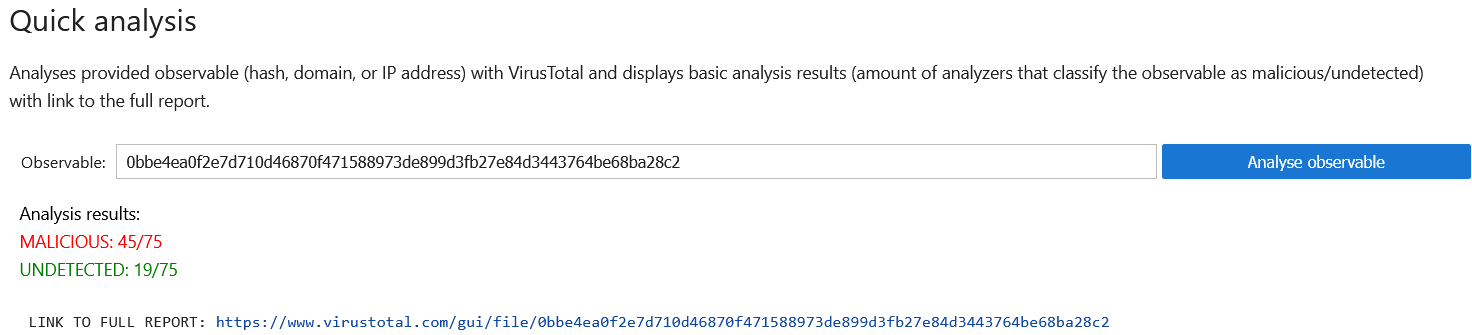
Note
Since querying VirusTotal requires an API key, this notebook defaults to using offline reports from previous analyses to prevent excessive request generation. However, if you have a VirusTotal API key, you can configure the notebook to query VirusTotal directly.
To enable this, open the management notebook (management.yml) and click Load current configuration. In the virustotal section of the configuration, set offline_mode: False and enter your API key as the api_key value, as shown in the screenshot below. Remember to save your changes by clicking Save configuration.
Once you've updated the configuration file, restart the observable analysis notebook to apply the new settings.

Task 2: Gathering IOCs
Now that we've determined the attachment is likely malicious, our next step is to identify Indicators of Compromise (IOCs) associated with this malware. IOCs can include IP addresses, domains, or URLs that the malware contacts after execution. We can automatically extract these IOCs from the VirusTotal report obtained in the previous step (you can find them under the Relations tab, as shown in the screenshot below).
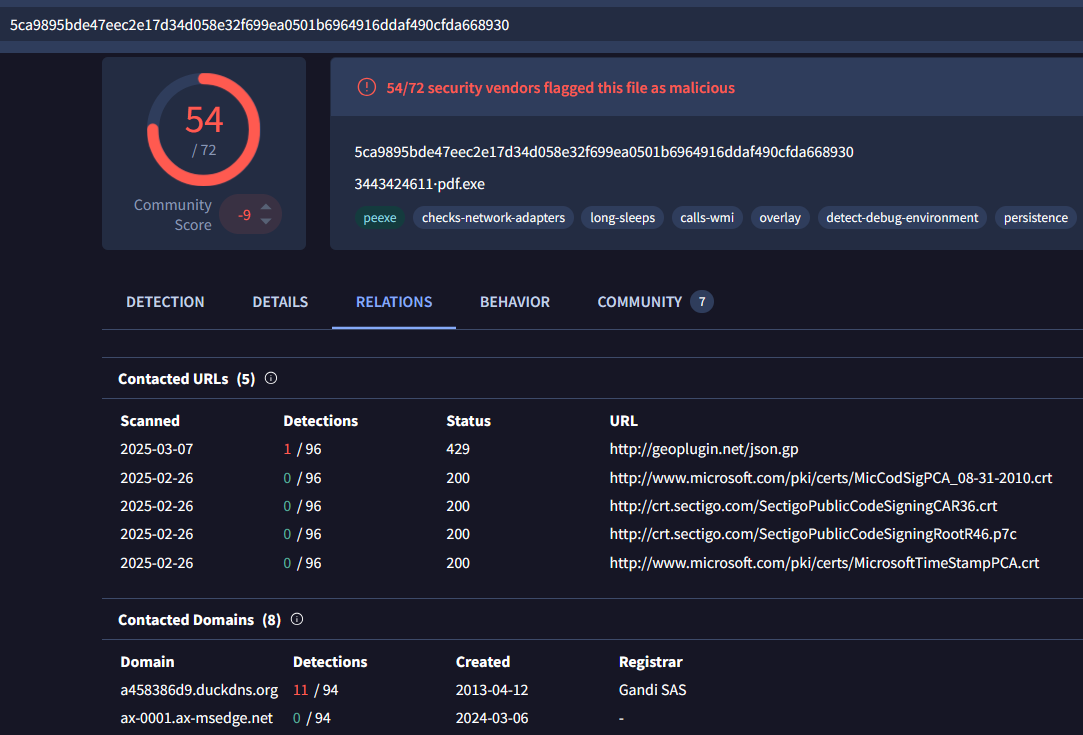
The Indicators of Compromise (IOCs) related to the file can be extracted from the report and analyzed further if needed. While this can be done manually, the notebook streamlines the process by automating these steps. In addition to extracting IOCs from the report, it also performs the following additional actions:
- Files bundled or dropped by the original executable are analyzed. If they are classified as malicious by five or more analyzers, their IOCs are also included in the output. (The
Directcolumn in the output tables indicates whether an IOC is linked to the original observable or a bundled/dropped file.) - Extracted IP addresses are enriched with their current DNS resolution.
- Historical DNS resolutions of the original observable are retrieved from the VirusTotal report and added to the extracted IOCs (if it is an IP address or domain).
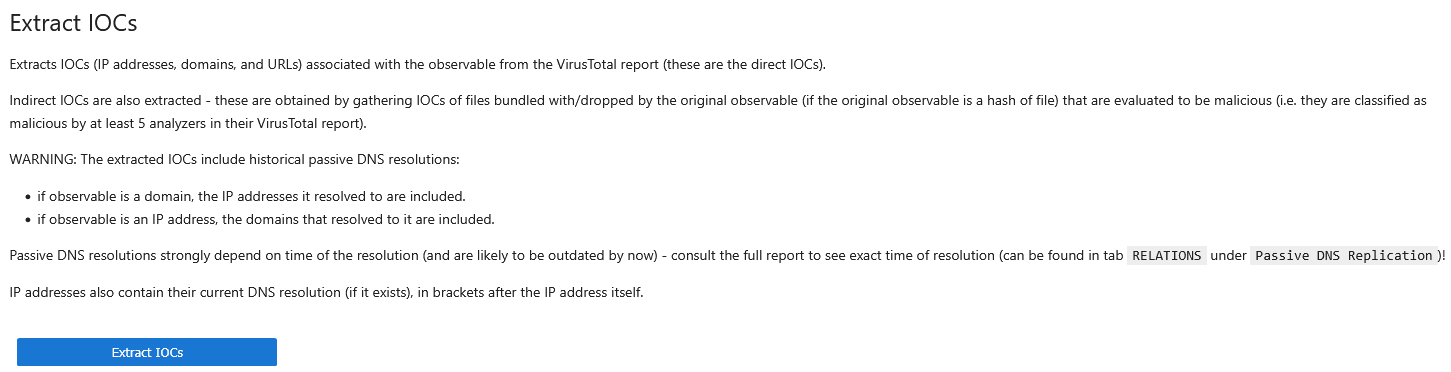
To execute all the provided IOC analysis actions, simply click the Extract IOCs button in the following notebook section and wait for the results. This step depends on the initial quick analysis and represents the next phase of the investigation.
Result
We can see the following extracted IOCs in the output of the cell:
Task 3: Analyzing extracted IOCs
Many extracted IOCs are regular domains or IP addresses and are not valid for identifying compromised hosts (for example, communication with domains like microsoft.com or certification authority sectigo.com). Instead, we will focus on other "unknown" IOCs that may deserve closer investigation:
- IP addresses:
150.171.27.10,104.18.38.233,20.99.133.109and217.76.50.73; - Domain:
a458386d9.duckdns.org(DuckDns is a service offering dynamic DNS, which maps a public domain to regularly changing IP address. Besides legitimate use cases, the service can be misused by attackers to communicate with the compromised machines and bypass IP address blocking).
To analyze identified IP addresses, use the next section of the notebook, which runs an RDAP query (Registration Data Access Protocol). Enter the IP address and click Search to retrieve publicly available information from the domain registry, including contact details. The results can be viewed in plain text or using the interactive JSON browser.
Additionally, you can use the first part of the notebook to quickly check the observables with VirusTotal. There's no risk of losing your extracted IOCs, as each section's output is only updated when its specific button is pressed, leaving previous results intact. Alternatively, you can duplicate the notebook by right-clicking its name in the left panel and selecting Duplicate.
Let's evaluate selected IP addresses and the domain (domain can only be evaluated with the quick analysis functionality in the first part of the notebook).


Result
Among the analyzed IOCs, the following appear suspicious, each with a significant number of detections (10+):- 217.76.50.73 – IP address under Contabo, German cloud provider:


- a458386d9.duckdns.org – domain discussed earlier:

Note
You can hide the output of the IP address details part of the notebook by pressing the small black triangle in the top left corner of the output.
Task 4: Searching IOCs in network flows data
In the previous part, we have identified two IOCs that are classified as malicious by several analyzers in VirusTotal. We will now use these IOCs to find out if there was any communication between the workstation of the employee, who reported the incident, and the discovered IP address/domain.
Network flows are logged and stored in a database as part of the infrastructure. These logs contain basic communication details (such as source and destination IP addresses and timestamps) and unencrypted network protocol data, such as TLS Server Name Indication (SNI), which reveals the domain of the server being accessed. The following options can be configured when performing a search through the notebook:
- IP addresses, domains, and URLs from IOC extraction – The selected values will be searched in the network flows (naturally, it doesn't make sense to search for regular domains, such as
microsoft.com). - Extra IP addresses and domains – An input for additional IP addresses and domains that were not identified by the automated IoCs extraction.
- View – Selection of a data view that will be displayed to the user (while the
basicview should be sufficient for our current task, feel free to use thegeolocationview which is also enhanced with geolocation of IP addresses). - Limit – Maximum number of network flows that will be queried (large values may lead to rendering issues).
- View limit – Query all data but display only the number of flows defined in the Limit.
- IP flow type – The network flows in the database are stored as uniflows, which means they are unidirectional. However, they can be combined into biflows, providing information about both directions of the communication (network flow data are stored as unidirectional, but the notebook can transform them during the processing of query results).
- Datetime values – Restriction of a time window of the query to search netflow data.
The employee who received the malicious e-mail reported receiving it shortly after 7 AM on February 20, 2025.
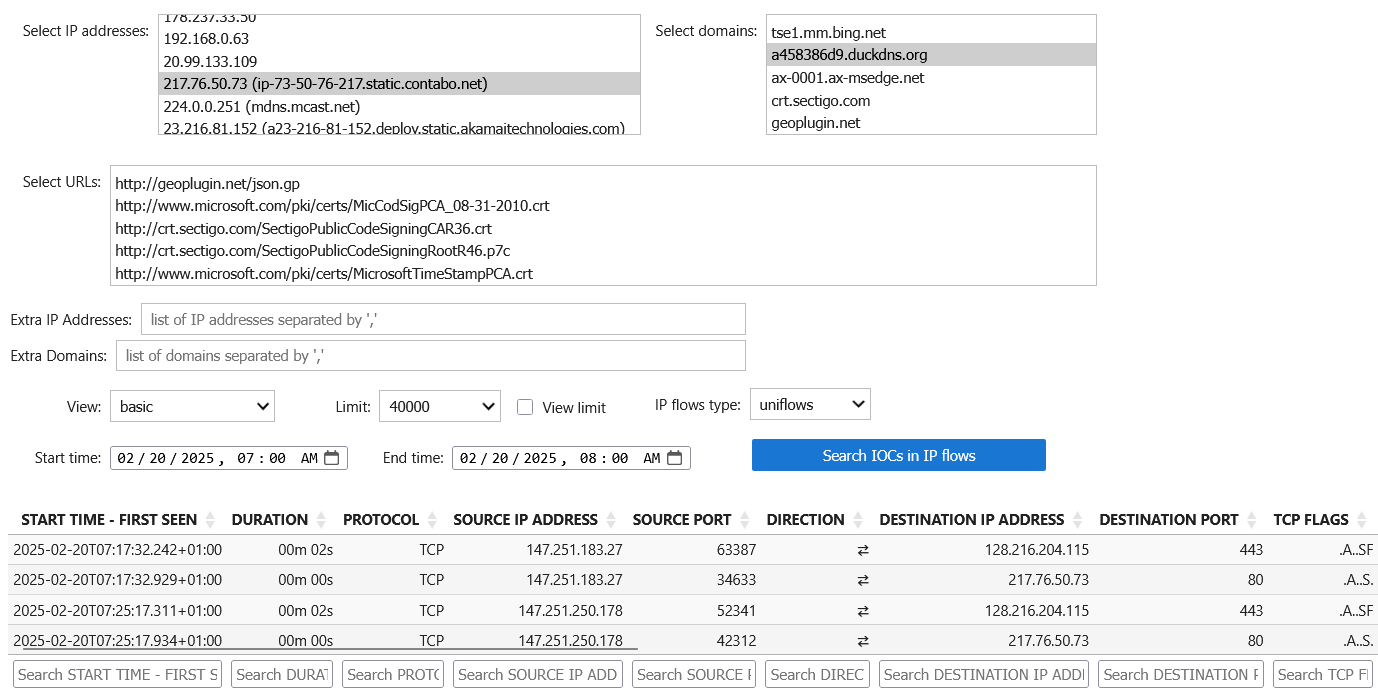
After entering the correct query parameters, run the search by clicking the Search IOCs in IP flows button. The employee's workstation IP address is 147.251.183.27, but we should also monitor other IP addresses that have communicated with the identified IP or domain – others may have received the malicious e-mail as well.

Result
The analysis reveals communication between employee's workstation and the IoC domain, followed immediately by communication with the IoC IP address (we can take the advantage of the biflows type option for simpler output). This strongly suggests that employee's workstation has been compromised. However, we should also notice the same communication pattern for another workstation,147.251.250.178, suggesting that this workstation has been compromised in the same way as well.
Task 5: Storing gathered data
Finally, we should save the gathered network flows as evidence for further investigation. In the last part of the notebook, simply select the preferred format (CSV or JSON) and press the Store obtained IP flows button. The retrieved data will be stored in the data/observable_analysis/ directory.

Result
You should see the exported files listed in the output, feel free to click on them to open them.