Hands-on: Memory Dump Analysis
After completing the Network Traffic Analysis notebook, it's time to dive into memory dump artifacts. While the most investigations would likely start by searching for pivot points within the memory, this analysis is less straightforward and, therefore, a bit more complex to automate.
Your job in this notebook will be to create a workflow for an extraction of network connections from a memory dump using Volatility 3 netscan module, identify suspicious processes in memory with malfind, and, for the quicker of you, tackle a bonus challenge – extract suspicious executables and analyze them with CAPA tool. At the end, you may also encounter limits (maybe intentionally set by attackers) in both Volatility and CAPA. Can you uncover them?
Preparation
For this analysis, ensure that citadeldc01.mem is downloaded in the data/ directory. If you haven't downloaded the file during the preparation stage, follow the instructions in the Preparation → Tutorial section.
Key components of this analytical notebook are Volatility 3 and CAPA tools. To simplify the setup and eliminate the need for manual installation, we have provided it as a Docker/Podman image. The configuration is already set up, so no additional changes are required. Additionally, we have prepared a connector modules to manage Volatility and CAPA containers. You can find it in the connectors/toolbox/ directory.
Recommended code structure
The easiest way to write interactive analytical notebooks (but of course, not the only approach) is to follow the following code structure for each analytical section:
- Define all necessary widgets – You can use ipywidgets or any other widget you found. Don't forget to include Output.
- Implement helper functions (optional) – These functions should be bound to the user interface logic, and they should be easily refactor-able into separate modules.
- Implement widget functions – Functions that are called by or interact with widgets, they connect widget events to the helper functions or contain the whole code in case of smaller actions.
- Display all widgets – You can use various layouts to combine and arrange defined widgets.
For each code section, screenshots of the expected UI component setup will be provided. You can use it as an inspiration.
Initial setup
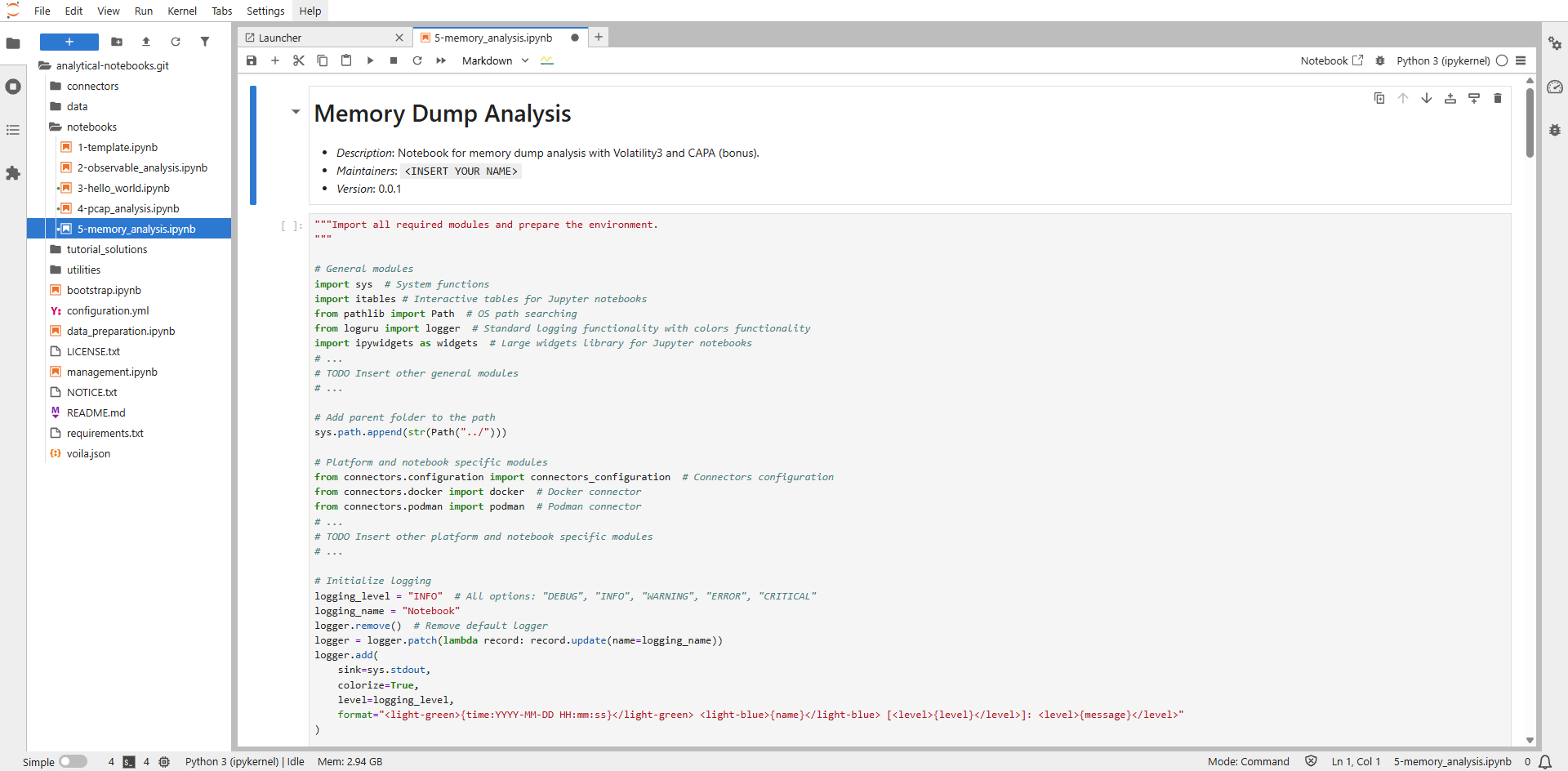
To create the interactive notebook for analysis of memory dumps, use the prepared template notebook notebooks/5-memory_analysis.ipynb. This notebook is based on the 1-template.ipynb described in the Examples → Notebook Example section. The parts that need to be completed are marked with a # TODO comment.
To edit the notebook, you need to open it as a regular notebook instead of using the Voila view. To do so, right click on the notebook in the left panel and select Open With → Notebook (see the following screenshots). This opens a classic notebook where you can easily edit the individual sections.
To see how the notebook is rendered using Voila, click on the Voila icon (a yellow wave with a blue line) in the notebook control panel. This will open the Voila view in a new panel. By default, this view does not automatically update when you save changes to the notebook. To refresh it, simply reload the page.


Note
If you ever get stuck or are unsure about the next steps, you can refer to the final version of the notebook prepared in tutorial_solutions/5-memory_analysis.ipynb. But we believe that won't be necessary.
Required edits
Before you start implementing any step of the analytical workflow, you need to prepare the whole notebook environment. Thanks to the prepared template you don't have to define so much. All you need to do is the following three steps.
1. Update initial notebook description
Each section of the notebook can include comments written in Markdown, including the header. To get familiar with it, add your name or nickname to the notebook header. To change the <INSERT YOUR NAME> value, you need to double click on the section, which will switch the comment to the editing mode. To switch back to the view mode, just run the cell (► icon in the notebook control panel).
2. Import all required modules
Insert all modules imports necessary for this notebook (widgets, common data processing modules, or connectors). We recommend importing them only when needed. But to make it easier for you to implement the notebook, modify the include as follows:
# General modules
import sys  # System functions
from pathlib import Path  # OS path searching
from loguru import logger  # Standard logging functionality with colors functionality
import ipywidgets as widgets  # Large widgets library for Jupyter notebooks
import os  # Operating system functions
import pandas as pd  # Pandas data processing
import json  # JSON processing
import itables  # Interactive tables for Jupyter notebooks
from ipyfilechooser import FileChooser  # File picker widget

# Add parent folder to the path
sys.path.append(str(Path("../")))

# Platform and notebook specific modules
from connectors.configuration import connectors_configuration  # Connectors configuration
from connectors.docker import docker  # Docker connector
from connectors.podman import podman  # Podman connector
from connectors.toolbox.volatility import volatility  # Volatility tool connector
from connectors.toolbox.capa import capa  # Capa tool connector
from utilities.capa_helpers import show_capa_analysis_results  # Capa related utilities
from utilities.netscan_helpers import get_filtered_netscan_connections, parse_netscan_file, \
    filter_connections_for_foreign_addresses, lookup_and_parser_rdap_records, get_rdap_detailed_record, \
    get_formatted_detailed_mnemonic  # Netscan utilities
3. Define used toolbox images IDs
Update the REQUIRED_TOOLBOX_IMAGES_IDS global variable by adding "volatility-3" and "capa" values to the list. No other tools from the toolbox are needed for this notebook.
Note
During the implementation you will work with the running_toolbox_containers global variable, which is used to continuously store running containers so that they can be destroyed after the analysis is finished (if they are not terminated earlier).
Analytical part: Extract network connections
Widgets definition
As a first step, prepare components to choose file for netscan extraction with FileChooser.


Solution: Widgets definition
"""Widgets definition.
"""

w_description_label = widgets.Label(
    value="Select .mem file to extract network connections with Volatility3 netscan: ",
    layout={"margin": "0 1em 0 0"},
    style={"font_weight": "bold"}
)

w_input_memfile_file_select_chooser = FileChooser(
    path="../data/",
    filter_pattern=["*.mem"],
    select_desc="Select",
    dir_icon="/",
    dir_icon_append=True,
    layout={"width": "auto", "margin": "1em 0 0 0"}
)

w_start_netscan_button = widgets.Button(
    description="Extract connections from .mem",
    tooltip="Extract connections from .mem",
    button_style="primary",
    disabled=True,
    layout={"width": "20em", "margin": "1em 0 0 0"}
)

w_memfile_extract_netscan_output = widgets.Output(layout={"margin": "1em 0 0 0"})
"""Widgets display.
"""
extract_files_select_box = widgets.VBox([w_description_label, w_input_memfile_file_select_chooser])
widgets.VBox([extract_files_select_box, w_start_netscan_button, w_memfile_extract_netscan_output])
Widgets functions definition
To run the Volatility container, use the following template function. It initializes the container using a manager (Docker/Podman) and ensures the container is removed after the job completes.
Your task is to:
- Add functionality to execute the netscan plugin and save results to
/data/netscan_{input_filename}.out. - Connect this functionality to GUI widgets (
FileChooserfor input selection andButtonto trigger extraction).
Note: Ensure UI reliability by logging key events, disabling buttons during execution, and clearing prior outputs.
def file_selected(chooser):
    """Enable the w_start_netscan_button if user selected a file."""
    if w_input_memfile_file_select_chooser.selected:
        w_start_netscan_button.disabled = False

w_input_memfile_file_select_chooser.register_callback(file_selected)

def volatility_netscan() -> bool:
    """Run volatility netscan container and store results.

    Returns:
        bool: False if files failed to store, True otherwise
    """
    # Start Volatility3 container
    volatility_container_name = containers_manager.start_tool(tool_id="volatility-3", data_path=w_input_memfile_file_select_chooser.selected_path)
    if not volatility_container_name:
        logger.error("Cannot start Volatility3 container.")
        w_start_netscan_button.disabled = False
        return False
    running_toolbox_containers.append(volatility_container_name)

    # Initialize Volatility3 connector
    volatility_connector = volatility.Volatility3(containers_manager=containers_manager, container_name=volatility_container_name)

    # Store extracted files
    memfile_name = Path(w_input_memfile_file_select_chooser.selected_filename).stem

    # ... Process .mem using Volatility3
    # TODO Prepare data for analysis (/connector/toolbox/volatility/)
    # TODO Call function to analyze pcap with netscan (/connector/toolbox/volatility/)
    # TODO Store netscan results from container to /data folder on the host (/connector/toolbox/volatility/)
    # ...

    # Volatility3 container remove
    if not containers_manager.remove_container(container_name=volatility_container_name):
        logger.warning("Cannot remove Volatility3 container")
    else:
        running_toolbox_containers.remove(volatility_container_name)
    return True

# Initialize extraction
def extract_netcon(button):

    # ...
    # TODO
    # ....

w_start_netscan_button.on_click(extract_netcon)
Solution: Widgets functions definition
"""Widgets functions.
"""

def volatility_netscan() -> bool:
    """Run volatility netscan container and store results.

    Returns:
        bool: False if files failed to store, True otherwise
    """
    # Start Volatility3 container
    volatility_container_name = containers_manager.start_tool(tool_id="volatility-3", data_path=w_input_memfile_file_select_chooser.selected_path)
    if not volatility_container_name:
        logger.error("Cannot start Volatility3 container.")
        w_start_netscan_button.disabled = False
        return False
    running_toolbox_containers.append(volatility_container_name)

    # Initialize Volatility3 connector
    volatility_connector = volatility.Volatility3(containers_manager=containers_manager, container_name=volatility_container_name)

    # Process .mem using Volatility3
    volatility_connector.data_preparation(input_file_name=w_input_memfile_file_select_chooser.selected_filename)
    volatility_connector.netscan(mem_file=w_input_memfile_file_select_chooser.selected_filename)

    # Store extracted files
    memfile_name = Path(w_input_memfile_file_select_chooser.selected_filename).stem
    volatility_connector.store_netscan_results(mem_file=memfile_name)

    # Volatility3 container remove
    if not containers_manager.remove_container(container_name=volatility_container_name):
        logger.warning("Cannot remove Volatility3 container")
    else:
        running_toolbox_containers.remove(volatility_container_name)
    return True


def file_selected(chooser):
    """Enable the w_start_netscan_button if user selected a file."""
    if w_input_memfile_file_select_chooser.selected:
        w_start_netscan_button.disabled = False

w_input_memfile_file_select_chooser.register_callback(file_selected)


# Initialize extraction
def extract_netcon(button):
    """Initial function to call volatility_netscan() on .mem file and manage output space.
    """

    # Disable action button while file not chosen
    button.disabled = True
    w_memfile_extract_netscan_output.clear_output()
    selected_filename = w_input_memfile_file_select_chooser.selected_filename

    with w_memfile_extract_netscan_output:
        logger.info(selected_filename)
        logger.info(f"Extracting data from .mem file '{selected_filename}'...")

        if volatility_netscan():
            logger.info(f"Volatility analysis results stored in /data folder.")
        else:
            logger.error(f"Volatility analysis on file '{selected_filename}' failed.")
    button.disabled = False

w_start_netscan_button.on_click(extract_netcon)
Analytical part: Show network connections
Once you have acquired the netscan-*.out files, display them in a way that enables users to quickly search for relevant information, filter the data for specific values and exclude unwanted entries from the output.
This section should provide the following options and associated UI components:
- A file chooser that allows you to select the
netscan-{image_filename}.outfor the chosen memory image. - Widgets that enable loading a filtered dataset based on process (PID, owner) and protocol.
- Widgets that allow you to specify values to be excluded from the dataset in the table.
- A widget that displays the data and applies filter values if provided within the input windows.
- A button to export the data including filtered values.
Widgets definition


Solution: Widgets definition
"""Widgets definition.
"""

w_input_show_analyzed_connections_archive_select_chooser = FileChooser(
    path="../data/",
    filter_pattern=["*.out"],
    select_desc="Select netscan output file",
    dir_icon="/",
    dir_icon_append=True,
    layout={"width": "40em", "margin": "1em 0 0 0"}
)

w_input_archive_select_label = widgets.Label(
    value="Select archive file: ",
    layout={"margin": "0.5em 0.5em 0.5em 0.5em"},
    style={"font_weight": "bold"}
)

w_input_filter_label = widgets.Label(
    value="Set filtering values: ",
    layout={"margin": "0.5em 0.5em 0.5em 0.5em"},
    style={"font_weight": "bold"}
)

w_input_exclude_label = widgets.Label(
    value="Set values to exclude, use comma ',' as delimiter: ",
    layout={"margin": "0.5em 0.5em 0.5em 0.5em"},
    style={"font_weight": "bold"}
)

w_search_process = widgets.Text(
    value='',
    placeholder='Process name...',
    description='Process:',
    disabled=False,
    layout={"width": "17em", "margin": "1em 0 0 0"}
)

w_search_protocol = widgets.Text(
    value='',
    placeholder='Protocol type...',
    description='Protocol:',
    disabled=False,
    layout={"width": "17em", "margin": "1em 0 0 0"}
)

w_exclude_protocol = widgets.Text(
    value='',
    placeholder='Protocol type...',
    description='Exclude protocol:',
    disabled=False,
    layout={"width": "20em", "margin": "1em 1em 1em 1em"},
    style={'description_width': 'initial'}
)

w_exclude_pid = widgets.Text(
    value='',
    placeholder='PID value...',
    description='Exclude PID:',
    disabled=False,
    layout={"width": "20em", "margin": "1em 1em 1em 1em"},
    style={'description_width': 'initial'}
)

w_exclude_owner = widgets.Text(
    value='',
    placeholder='Owner name...',
    description='Exclude owner:',
    disabled=False,
    layout={"width": "20em", "margin": "1em 1em 1em 1em"},
    style={'description_width': 'initial'}
)

# Button to export network connections
w_export_connections_button = widgets.Button(
    description="Export network connections",
    tooltip="Export network connections",
    button_style="primary",
    disabled=True,
    layout={"width": "20em", "margin": "1em 0 0 0"}
)

w_show_connections_button = widgets.Button(
    description="Show network connections",
    tooltip="Show network connections",
    button_style="success",
    disabled=True,
    layout={"width": "20em", "margin": "1em 2em 0 0"}
)

w_network_analysis_output = widgets.Output(layout={"margin": "1em 0 0 0"})
"""Widgets display.
"""

network_analysis_select_box = widgets.VBox([w_input_archive_select_label, w_input_show_analyzed_connections_archive_select_chooser])

filtering_ = widgets.HBox([w_input_filter_label])
network_analysis_action_box = widgets.HBox([w_input_filter_label, w_search_process, w_search_protocol])

exclude_label = widgets.HBox([w_input_exclude_label])
exclude_protocol = widgets.HBox([w_exclude_protocol])
exclude_pid = widgets.HBox([w_exclude_pid])
exclude_process = widgets.HBox([w_exclude_owner])

network_analysis_button_box = widgets.HBox([w_show_connections_button, w_export_connections_button])
widgets.VBox([network_analysis_select_box, network_analysis_action_box, exclude_label, exclude_protocol,
              exclude_pid,exclude_process,  network_analysis_button_box, w_network_analysis_output])
Widgets functions definition
To display the connections, use the following template for the show_connections function, which is triggered when the Show network connections button is clicked.
Further, add filtering logic and display the results using interactive itables. Each time the Show network connections button is clicked, data from the netscan.out file should be loaded, filtering rules applied, and the updated data displayed. For filtering and parsing the DataFrame output, you can use the helper function provided in utilities/netscan_helpers.py. Be sure to add logging and handle exceptions where necessary.
def file_selected(chooser):
    """Enable the w_show_connections_button and w_export_connections_button if user selected a file."""
    if chooser.selected:
        w_show_connections_button.disabled = False
        w_export_connections_button.disabled = False

w_input_show_analyzed_connections_archive_select_chooser.register_callback(file_selected)


def export_connections(button):
    """Export connections related to extracted files into a .xml file."""

    if w_input_show_analyzed_connections_archive_select_chooser.selected:
        w_show_connections_button.disabled = False
        w_export_connections_button.disabled = False

    # Clear the output area
    w_network_analysis_output.clear_output()

    # Perform analysis and display results
    with w_network_analysis_output:

        if w_input_show_analyzed_connections_archive_select_chooser.selected_filename:
            logger.debug(f"Selected archive: {w_input_show_analyzed_connections_archive_select_chooser.selected_filename}")
            logger.info("Analyzing Volatility netscan output...")

            netscan_file_path=w_input_show_analyzed_connections_archive_select_chooser.value
            files_connections = get_filtered_netscan_connections(netscan_output_path=netscan_file_path,
                                                         exclude_proto=w_exclude_protocol.value.strip(),
                                                         exclude_process_pid=w_exclude_pid.value.strip(),
                                                         exclude_owner=w_exclude_owner.value.strip(),
                                                         search_process=w_search_process.value.strip(),
                                                         search_protocol=w_search_protocol.value.strip())
            if not files_connections.empty:
                export_path = os.path.join("../data/", "network_connections.csv")
                files_connections.to_csv(export_path, index=False, encoding="utf-8")

                logger.info(f"Network connections exported to {export_path}")
            else:
                logger.warning("No connections found.")

def show_connections(button):
    """Show a table with connections related to extracted files in netscan.out."""

    # Clear the output area
    w_network_analysis_output.clear_output()

    # Perform analysis and display results
    with w_network_analysis_output:

        if w_input_show_analyzed_connections_archive_select_chooser.selected_filename:
            logger.debug(f"Selected archive: {w_input_show_analyzed_connections_archive_select_chooser.selected_filename}")
            logger.info("Analyzing Volatility netscan output...")

            # ...
            # TODO Get already filtered network connections from previous step to display (utilities/netscan_helpers)
            # files_connections = ???
            # ...

            if not files_connections.empty:
                itables.show(
                    files_connections,
                    column_filters="footer",
                    classes="display nowrap compact",
                    scrollX=True,
                    lengthMenu=[25, 50, 100, 250],
                )
                logger.debug("Network connections table successfully displayed.")
            else:
                logger.warning("No connections found.")

    w_show_connections_button.disabled = False
    w_export_connections_button.disabled = False
Note
To save the filtered dataset, simply use the export_connections function, which will store the data instead of displaying it.
Solution: Widgets definition
"""""Widget functions.
"""

def file_selected(chooser):
    """Enable the w_show_connections_button and w_export_connections_button if user selected a file."""
    if chooser.selected:
        w_show_connections_button.disabled = False
        w_export_connections_button.disabled = False

w_input_show_analyzed_connections_archive_select_chooser.register_callback(file_selected)


def show_connections(button):
    """Show a table with connections related to extracted files in netscan.out."""

    # Clear the output area
    w_network_analysis_output.clear_output()

    # Perform analysis and display results
    with w_network_analysis_output:

        if w_input_show_analyzed_connections_archive_select_chooser.selected_filename:
            logger.debug(f"Selected archive: {w_input_show_analyzed_connections_archive_select_chooser.selected_filename}")
            logger.info("Analyzing Volatility netscan output...")

            netscan_file_path=w_input_show_analyzed_connections_archive_select_chooser.value
            files_connections = get_filtered_netscan_connections(netscan_output_path=netscan_file_path,
                                                         exclude_proto=w_exclude_protocol.value.strip(),
                                                         exclude_process_pid=w_exclude_pid.value.strip(),
                                                         exclude_owner=w_exclude_owner.value.strip(),
                                                         search_process=w_search_process.value.strip(),
                                                         search_protocol=w_search_protocol.value.strip())

            if not files_connections.empty:
                itables.show(
                    files_connections,
                    column_filters="footer",
                    classes="display nowrap compact",
                    scrollX=True,
                    lengthMenu=[25, 50, 100, 250],
                )
                logger.debug("Network connections table successfully displayed.")
            else:
                logger.warning("No connections found.")

    w_show_connections_button.disabled = False
    w_export_connections_button.disabled = False

w_show_connections_button.on_click(show_connections)


def export_connections(button):
    """Export connections related to extracted files into a .xml file."""

    if w_input_show_analyzed_connections_archive_select_chooser.selected:
        w_show_connections_button.disabled = False
        w_export_connections_button.disabled = False

    # Clear the output area
    w_network_analysis_output.clear_output()

    # Perform analysis and display results
    with w_network_analysis_output:

        if w_input_show_analyzed_connections_archive_select_chooser.selected_filename:
            logger.debug(f"Selected archive: {w_input_show_analyzed_connections_archive_select_chooser.selected_filename}")
            logger.info("Analyzing Volatility netscan output...")

            netscan_file_path=w_input_show_analyzed_connections_archive_select_chooser.value
            files_connections = get_filtered_netscan_connections(netscan_output_path=netscan_file_path,
                                                         exclude_proto=w_exclude_protocol.value.strip(),
                                                         exclude_process_pid=w_exclude_pid.value.strip(),
                                                         exclude_owner=w_exclude_owner.value.strip(),
                                                         search_process=w_search_process.value.strip(),
                                                         search_protocol=w_search_protocol.value.strip())
            if not files_connections.empty:
                export_path = os.path.join("../data/", "network_connections.csv")
                files_connections.to_csv(export_path, index=False, encoding="utf-8")

                logger.info(f"Network connections exported to {export_path}")
            else:
                logger.warning("No connections found.")

# Attach the function to the button click event
w_export_connections_button.on_click(export_connections)
Analytical part: RDAP records for extracted IP addresses
In this step, you will enrich the data with additional information in two steps:
- Extract relevant IOCs, i.e., foreign IP addresses that are not private, reserved, loopback or multicast) from the selected netscan.out file for the desired memory image. Then, allow users to choose the IP addresses for which RDAP records should be retrieved through dropdown menu.
- Prepare a button that retrieves the RDAP records for the selected IP addresses from the dropdown menu.
Widgets definition

Solution: Widgets definition
"""Widgets definition.
"""

w_find_addresses_in_netscan_button = widgets.Button(
    description="Find available IP addresses",
    tooltip="Find available IP addresses",
    button_style="primary",
    disabled=True,
    layout={"width": "20em"}
)

w_select_addresses_label = widgets.Label(
    value="Select addresses to analyze:",
    style={"font_weight": "bold"}
)

w_select_multiple_addresses_select = widgets.SelectMultiple(
    options=[],
    value=[],
    rows=10,
    layout={"width": "auto"}
)

w_start_ip_lookup_button = widgets.Button(
    description="Lookup RDAP records",
    tooltip="Lookup RDAP records",
    button_style="success",
    disabled=True,
    layout={"width": "20em", "margin": "1em 0 0 0"}
)

w_ip_detail_file_chooser = FileChooser(
    path="../data/",
    filter_pattern=["*.out"],
    select_desc="Select",
    dir_icon="/",
    dir_icon_append=True,
    layout={"width": "40em", "margin": "1em 0 0 0"}
)

w_analysis_output = widgets.Output(layout={"margin": "0 0 0 0"})
"""Widgets display.
"""

w_file_input_box = widgets.HBox([w_ip_detail_file_chooser])
w_start_ip_analysis_box = widgets.HBox([w_start_ip_lookup_button])
w_ip_analysis_box = widgets.VBox([w_file_input_box, w_find_addresses_in_netscan_button, w_select_addresses_label, w_select_multiple_addresses_select, w_start_ip_analysis_box])
# w_saved_records_box = widgets.VBox([w_archives_selection_output])

widgets.VBox([w_ip_analysis_box, w_analysis_output])
Widgets functions definition
To complete this task, you need to prepare two functions:
- First to extract all potential IoCs
- Second to retrieve RDAP records
For extracting IP addresses from the selected netscan.out file, you can use the following template of function get_foreign_addresses_list, which should display IP addresses in the format PID (Owner) - foreign IP address in a dropdown menu, allowing users to select from the list.
You can help yourself again and use the module /utilities/netscan_helpers, where in the RDAP section, filter_connections_for_foreign_addresses function is prepared. This function filters out foreign IP addresses, which is exactly what we need.
Don't forget that the module netscan_helpers also includes a function for parsing the netscan.out_file into a pandas DataFrame.
def file_selected(chooser):
    if w_ip_detail_file_chooser.selected:
        w_find_addresses_in_netscan_button.disabled = False
        w_start_ip_lookup_button.disabled = False

w_ip_detail_file_chooser.register_callback(file_selected)

def get_foreign_addresses_list(button):
    """Get a list of foreign IP connections in the format 'PID (Owner) - IP address' and add them to the widget.
    A foreign address refers to an IP address that is not reserved, a loopback, a multicast address, or part of a private network range.
    """
    with w_analysis_output:
        w_analysis_output.clear_output()

        logger.info("Checking for extracted data with external connections...")

        netscan_output_path = w_ip_detail_file_chooser.value

        # ...
        # file_connections = ???
        #
        # TODO Parse chosen netscan output file (netscan_output_path) with network connections to pandas DataFrame.
        # TODO Filter out foreign addresses to receive list of PID+Owner+IPaddress to display in widget.
        #
        # foreign_connections_list = ???
        # ...


        # Update the widget with the formatted list
        if foreign_connections_list:
            w_select_multiple_addresses_select.options = foreign_connections_list
            w_select_multiple_addresses_select.value = foreign_connections_list
            # logging
        else:
            # logging
            return

    # Enable action buttons
    w_find_addresses_in_netscan_button.disabled = False
    w_start_ip_lookup_button.disabled = False

# Attach the function to the button click event
w_find_addresses_in_netscan_button.on_click(get_foreign_addresses_list)
To allow the selection of multiple IP addresses for which RDAP records should be retrieved, you can use the SelectMultiple widget from the ipywidgets library. This widget provides an interactive multiple-selection interface for Jupyter Notebooks, enabling users to select multiple items from a dropdown or list-style menu.
w_select_addresses_select = widgets.SelectMultiple(
    options=[],
    value=[],
    rows=10,
    layout={"width": "auto"}
)
Once the user selects the foreign address(es) for which they wish to retrieve RDAP records, they are expected to click the Lookup RDAP records button. The corresponding RDAP records will then be displayed in the table below. For this purpose, you can use the following enrich_with_rdap function template. You will need to implement the logic for retrieving the RDAP records and displaying them through itables.
Note
Both functions get_foreign_addresses_list and enrich_with_rdap, as currently designed, always parse the netscan.out file again (using utilities/netscan_helper.parse_netscan_file, but you may choose to write a more efficient solution.
def enrich_with_rdap(button):
    """Enrich selected Volatility3 netscan.output data using RDAP and display results in itable.
    """

    # Disable the action button
    w_start_ip_lookup_button.disabled = True

    with w_analysis_output:
        w_analysis_output.clear_output()

        # Get selected netscan.output
        selected_files = w_select_multiple_addresses_select.value
        if not selected_files:
            print("No files selected for analysis.")
            w_start_ip_lookup_button.disabled = False
            return

        # Retrieve the file connections dataframe
        netscan_output_path = w_ip_detail_file_chooser.value

        # ...
        # TODO Get parsed connections from netscan output file (utilities/netscan_helpers/parse_netscan_file)
        # TODO lookup and parse RDAP records (utilities/netscan_helpers/lookup_and_parser_rdap_records)
        # TODO Display RDAP records for chosen IP addresses (itables)
        # ...

    # Enable the action button
    w_start_ip_lookup_button.disabled = False

w_start_ip_lookup_button.on_click(enrich_with_rdap)
Solution: Widgets definition
"""Widget functions.
"""

def file_selected(chooser):
    if w_ip_detail_file_chooser.selected:
        w_find_addresses_in_netscan_button.disabled = False
        w_start_ip_lookup_button.disabled = False

w_ip_detail_file_chooser.register_callback(file_selected)


def get_foreign_addresses_list(button):
    """Get a list of foreign IP connections in the format 'PID (Owner) - IP address' and add them to the widget.
    A foreign address refers to an IP address that is not reserved, a loopback, a multicast address, or part of a private network range.
    """

    with w_analysis_output:
        w_analysis_output.clear_output()

        logger.info("Checking for extracted data with external connections...")

        # Get connections
        netscan_output_path = w_ip_detail_file_chooser.value
        file_connections = parse_netscan_file(netscan_output_path)

        if file_connections is None or file_connections.empty:
            logger.info("No connections found.")
            w_find_addresses_in_netscan_button.disabled = False
            w_start_ip_lookup_button.disabled = False
            return

        foreign_connections_list = filter_connections_for_foreign_addresses(file_connections)
        # Update the widget with the formatted list
        if foreign_connections_list:
            w_select_multiple_addresses_select.options = foreign_connections_list
            w_select_multiple_addresses_select.value = foreign_connections_list
        else:
            logger.info("No external connections found.")
            return

    # Enable action buttons
    w_find_addresses_in_netscan_button.disabled = False
    w_start_ip_lookup_button.disabled = False

# Attach the function to the button click event
w_find_addresses_in_netscan_button.on_click(get_foreign_addresses_list)


def enrich_with_rdap(button):
    """Enrich selected Volatility3 netscan.output data using RDAP and display results in itable.
    """

    # Disable the action button
    w_start_ip_lookup_button.disabled = True

    with w_analysis_output:
        w_analysis_output.clear_output()

        # Get selected netscan.output
        selected_files = w_select_multiple_addresses_select.value
        if not selected_files:
            print("No files selected for analysis.")
            w_start_ip_lookup_button.disabled = False
            return

        # Retrieve the file connections dataframe
        netscan_output_path = w_ip_detail_file_chooser.value

        file_connections = parse_netscan_file(netscan_output_path)

        if file_connections is None or file_connections.empty:
            print("No data available to analyze.")
            w_start_ip_lookup_button.disabled = False
            return

        logger.info("Running RDAP for selected records...")
        results_list = lookup_and_parser_rdap_records(file_connections, selected_files)

        if not results_list:
            print("No results to display.")
            return

        # Convert results to a DataFrame
        results_df = pd.DataFrame(results_list)

        # Display the table using itables
        itables.show(
            results_df,
            column_filters="footer",
            classes="display nowrap compact",
            scrollX=True,
            lengthMenu=[25, 50, 100, 250],
        )

    # Enable the action button
    w_start_ip_lookup_button.disabled = False

w_start_ip_lookup_button.on_click(enrich_with_rdap)
Analytical part: More detailed information
In the previous section, we automated the extraction of potential IoCs and the retrieval and display of corresponding RDAP records with just a few clicks. However, RDAP records, along with other tools, contain more information than can sometimes be easily or efficiently displayed in a table. Therefore, it can be useful to provide an option to view the complete original output.
In this section, you can try creating a UI setup where the user inputs an IP address for which they wish to retrieve and display detailed RDAP and Mnemonic records as a simple text output.
Widgets definition


To store the results for future reporting, you can add an option to save them using a Checkbox widget. Additionally, to display the output as shown in the illustration, you will need to use an Accordion widget.
w_store_search_records_checkbox = widgets.Checkbox(
    description="Store record",
    value=False,
    indent=False,
    layout={"width": "20em", "margin": "1em 0 0 0"}
)

w_rdap_accordion = widgets.Accordion(children=[
    widgets.Output(layout={"margin": "0 0 0 0"})
])
w_rdap_accordion.set_title(0, 'IP RDAP records')
Solution: Widgets definition
"""Widgets definition.
"""

w_search_ip_input = widgets.Text(
    value='',
    placeholder='Search for an IP',
    description='IP to lookup:',
    disabled=False,
    layout={"width": "20em", "margin": "1em 0 0 0"}
)

w_search_ip_button = widgets.Button(
    description="Search",
    tooltip="Search",
    button_style="success",
    disabled=False,
    layout={"width": "20em", "margin": "1em 2em 0 0"}
)

w_store_search_records_checkbox = widgets.Checkbox(
    description="Store record",
    value=False,
    indent=False,
    layout={"width": "20em", "margin": "1em 0 0 0"}
)

w_rdap_accordion = widgets.Accordion(children=[
    widgets.Output(layout={"margin": "0 0 0 0"})
])
w_rdap_accordion.set_title(0, 'IP RDAP records')

w_mnemonic_accordion = widgets.Accordion(children=[
    widgets.Output(layout={"margin": "0 0 0 0"})
])
w_mnemonic_accordion.set_title(0, 'IP Mnemonic records')

w_search_output = widgets.Output(layout={"margin": "0 0 0 0"})
"""Widgets display.
"""

w_search_action_box = widgets.HBox([w_search_ip_button, w_store_search_records_checkbox])
widgets.VBox([w_search_ip_input, w_search_action_box, w_search_output, w_rdap_accordion, w_mnemonic_accordion])
Widgets functions definition
Now, try to prepare the main function that is called when the Search button is clicked, which returns text outputs for RDAP and Mnemonic. Use the helper functions get_rdap_detailed_record and get_formatted_detailed_mnemonic from utilities/netscan_helpers, and don't forget to store the results if the checkbox to store data is checked, ideally in the /data/ folder.
"""Widget functions.
"""

def lookup_ip(button):
    """Lookup RDAP and Mnemonic records for an IP address."""

    w_search_ip_button.disabled = True
    w_search_output.clear_output()
    with w_search_output:
        ip_address = w_search_ip_input.value
        if ip_address:
            logger.info(f"Looking up information for IP: {ip_address}")

            try:

                # TODO Get detailed RDAP records for IP address from input (utilities/netscan_helpers.get_rdap_detailed_record)
                # TODO Store results in /data/folder

                logger.info(f"RDAP lookup finished. Continuing with mnemonic...")
            except Exception as e:
                rdap_result = f"RDAP Lookup failed for IP: {ip_address}\nError: {str(e)}"
                logger.warning(rdap_result)

            try:

                # TODO Get Mnemonic records for IP address from input (utilities/netscan_helpers.get_formatted_detailed_mnemonic)
                # TODO Store results in /data/folder

                logger.info(f"Mnemonic lookup finished.")

            except Exception as e:
                mnemonic_records = f"Mnemonic Lookup failed for IP: {ip_address}\nError: {str(e)}"
                logger.warning(mnemonic_records)
        else:
            warning_msg = "No IP input received."
            logger.warning(warning_msg)

    w_rdap_accordion.children[0].clear_output()
    with w_rdap_accordion.children[0]:
        print(rdap_result)

    w_mnemonic_accordion.children[0].clear_output()
    with w_mnemonic_accordion.children[0]:
        print(mnemonic_records)

    w_search_ip_button.disabled = False

# Attach the function to the button click event
w_search_ip_button.on_click(lookup_ip)
Solution: Widgets definition
"""Widgets functions definition.
"""
def lookup_ip(button):
    """Lookup RDAP and Mnemonic records for an IP address."""
    w_search_ip_button.disabled = True
    w_search_output.clear_output()
    with w_search_output:
        ip_address = w_search_ip_input.value
        if ip_address:
            logger.info(f"Looking up information for IP: {ip_address}")

            try:
                rdap_result = get_rdap_detailed_record(ip_address)
                if w_store_search_records_checkbox.value:
                    log_file = f"../data/{ip_address}_lookup.log"
                    with open(log_file, "w", encoding="utf-8") as log:
                        log.write(rdap_result)
                    logger.info(f"RDAP result logged to {log_file}")

                logger.info(f"RDAP lookup finished. Continuing with mnemonic...")
            except Exception as e:
                rdap_result = f"RDAP Lookup failed for IP: {ip_address}\nError: {str(e)}"
                logger.warning(rdap_result)

            try:
                mnemonic_records = get_formatted_detailed_mnemonic(ip_address)
                if w_store_search_records_checkbox.value:
                    log_file = f"../data/{ip_address}_mnemonic.log"
                    with open(log_file, "w", encoding="utf-8") as log:
                        log.write(mnemonic_records)
                    logger.info(f"Mnemonic result logged to {log_file}")

                logger.info(f"Mnemonic lookup finished.")

            except Exception as e:
                mnemonic_records = f"Mnemonic Lookup failed for IP: {ip_address}\nError: {str(e)}"
                logger.warning(mnemonic_records)
        else:
            warning_msg = "No IP input received."
            logger.warning(warning_msg)

    w_rdap_accordion.children[0].clear_output()
    with w_rdap_accordion.children[0]:
        print(rdap_result)

    w_mnemonic_accordion.children[0].clear_output()
    with w_mnemonic_accordion.children[0]:
        print(mnemonic_records)

    w_search_ip_button.disabled = False

# Attach the function to the button click event
w_search_ip_button.on_click(lookup_ip)
Analytical part: Malfind analysis
As the final step before the bonus, your task is to apply the Volatility3's malfind module to the chosen memory image and let it search for any injected or hidden malicious processes. The output in this case does not need special formatting, as malfind returns unstructured text and assembly parts of memory for individual suspicious sections of the process.
This step aims to identify any additional suspicious processes that may have been missed during the network connections analysis. Those with more advanced skills can also try to analyze the assembly code to determine what the specific process is doing :)
Widgets definition

Solution: Widgets definition
"""Widgets definition.
"""

# Button to start malfind analysis
w_start_analysis_button = widgets.Button(
    description="Analyse with Malfind",
    tooltip="Start .mem analysis",
    button_style="primary",
    disabled=True,
    layout={"width": "20em", "margin": "1em 0 0 0"}
)

w_input_file_select_label = widgets.Label(
    value="Select .mem file to extract: ",
    layout={"margin": "0 1em 0 0"},
    style={"font_weight": "bold"}
)

w_input_malfind_file_select_chooser = FileChooser(
    path="../data/",
    filter_pattern=["*.mem"],
    select_desc="Select",
    dir_icon="/",
    dir_icon_append=True,
    layout={"width": "auto", "margin": "1em 0 0 0"}
)

w_malfind_preview_output = widgets.Output(layout={'height': '400px'}, style={'overflow': 'auto'})
"""Widgets display.
"""

extract_files_select_box = widgets.VBox([w_input_file_select_label, w_input_malfind_file_select_chooser])
malfind_preview_box = widgets.HBox([w_malfind_preview_output])
widgets.VBox([extract_files_select_box, w_start_analysis_button, malfind_preview_box])
Widgets functions definition
Use the following function as a template, add the logic to run the malfind module and save its output to the data/ folder. The results will then be displayed as a simple text view with a scroll bar.
Ideally, you should call this function from the handler (function) linked to the Analyse with Malfind button, which allows to select a .mem file using the FileChooser widget, initiates the malfind analysis, and continuously logs the results and progress.
"""Helper functions.
"""
def file_selected(chooser):
    """Enable the w_start_analysis_button if user selected a file.
    """
    if w_input_malfind_file_select_chooser.selected:
        w_start_analysis_button.disabled = False

w_input_malfind_file_select_chooser.register_callback(file_selected)

def volatility_malfind() -> bool:
    """Process selected .mem using volatility tool.

    Returns:
        bool: False if files failed to store, True otherwise
    """

    # Start Volatility3 container
    volatility_container_name = containers_manager.start_tool(tool_id="volatility-3", data_path=w_input_malfind_file_select_chooser.selected_path)
    if not volatility_container_name:
        logger.error("Cannot start Volatility3 container.")
        w_start_analysis_button.disabled = False
        return False
    running_toolbox_containers.append(volatility_container_name)

    # Initialize Volatility3 connector
    volatility_connector = volatility.Volatility3(containers_manager=containers_manager, container_name=volatility_container_name)
    volatility_connector.data_preparation(input_file_name=w_input_malfind_file_select_chooser.selected_filename)

    # ...
    # TODO Call malfind module and store results
    # ...

    with open("../data/malfind.out", "r") as f:
        with w_malfind_preview_output:
            w_malfind_preview_output.clear_output()
            print(f.read())

    if not containers_manager.remove_container(container_name=volatility_container_name):
        logger.warning("Cannot remove Volatility3 container")
    else:
        running_toolbox_containers.remove(volatility_container_name)
    return True

def analyse_file(button):

    # ...
    # TODO
    # ...


w_start_analysis_button.on_click(analyse_file)
Solution: Widgets definition
"""Helper functions.
"""

def volatility_malfind() -> bool:
    """Process selected .mem using volatility tool.

    Returns:
        bool: False if files failed to store, True otherwise
    """

    # Start Volatility3 container
    volatility_container_name = containers_manager.start_tool(tool_id="volatility-3", data_path=w_input_malfind_file_select_chooser.selected_path)
    if not volatility_container_name:
        logger.error("Cannot start Volatility3 container.")
        w_start_analysis_button.disabled = False
        return False
    running_toolbox_containers.append(volatility_container_name)

    # Initialize Volatility3 connector
    volatility_connector = volatility.Volatility3(containers_manager=containers_manager, container_name=volatility_container_name)
    # Process .mem using Volatility3
    volatility_connector.data_preparation(input_file_name=w_input_malfind_file_select_chooser.selected_filename)

    # ----- MALFIND SECTION ------

    logger.info("Starting malfind on the memory dump...")
    volatility_connector.malfind(mem_file=w_input_malfind_file_select_chooser.selected_filename)
    logger.info("Malfind finished, storing results...")
    volatility_connector.execute_raw_command("cp /tmp/volatility/results/malfind.out /data/malfind.out")
    logger.info("Results saved, displaying the output...")

    with open("../data/malfind.out", "r") as f:
        with w_malfind_preview_output:
            w_malfind_preview_output.clear_output()
            print(f.read())

    if not containers_manager.remove_container(container_name=volatility_container_name):
        logger.warning("Cannot remove Volatility3 container")
    else:
        running_toolbox_containers.remove(volatility_container_name)
    return True
"""Widgets functions.
"""

def file_selected(chooser):
    """Enable the w_start_analysis_button if user selected a file.
    """
    if w_input_malfind_file_select_chooser.selected:
        w_start_analysis_button.disabled = False

w_input_malfind_file_select_chooser.register_callback(file_selected)


def analyse_file(button):
    """Analyse .mem file using Volatility3 tool and store results in the volatility_output_{selected_filename}.tar.gz archive.
    """

    # Disable action button
    w_start_analysis_button.disabled = True

    w_malfind_preview_output.clear_output()
    selected_filename = w_input_malfind_file_select_chooser.selected_filename

    with w_malfind_preview_output:
        logger.info(f"Extracting data from .mem file '{selected_filename}'...")

        if volatility_malfind():
            archive_name = f"volatility_memmap_dump_{selected_filename}.tar.gz"
            logger.info(f"Volatility analysis results stored in '{archive_name}'.")
        else:
            logger.error(f"Volatility analysis on file '{selected_filename}' failed.")

    w_start_analysis_button.disabled = False

w_start_analysis_button.on_click(analyse_file)
Analytical part: CAPA Analysis (Bonus)
The final touch for this analytical notebook is dumping the suspicious process from memory and analyzing it with the CAPA tool.
To dump a process, we use Volatility3's pslist module with --dump option for the process defined by its PID. If the entire process is available in the correct format within the memory dump, pslist will return a file named pid.<PID.value>.exe, containing the extracted binary. If the dump cannot be performed, the CAPA analysis cannot be completed.
Widgets definition
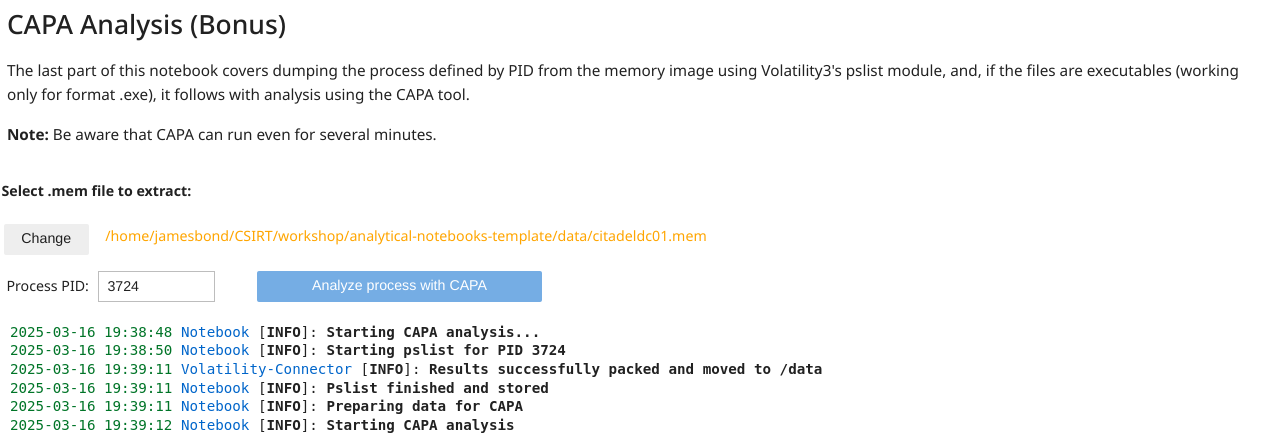
The output from CAPA is a JSON file containing various data, which is displayed as a table in this section. See the following illustration of the CAPA analysis UI components and output.

Solution: Widgets definition
"""Widgets definition.
"""

w_input_file_select_label = widgets.Label(
    value="Select .mem file to extract: ",
    layout={"margin": "0 1em 0 0"},
    style={"font_weight": "bold"}
)

w_input_file_select_chooser = FileChooser(
    path="../data/",
    filter_pattern=["*.mem"],
    select_desc="Select",
    dir_icon="/",
    dir_icon_append=True,
    layout={"width": "auto", "margin": "1em 0 0 0"}
)

w_search_process_pid = widgets.Text(
    value='',
    placeholder='Process PID...',
    description='Process PID:',
    disabled=False,
    layout={"width": "15em", "margin": "1em 3em 0 0"}
)
w_extract_process_by_pid_button = widgets.Button(
    description="Analyze process with CAPA",
    tooltip="",
    button_style="primary",
    disabled=True,
    layout={"width": "20em", "margin": "1em 0 0 0"}
)

w_anti_analysis_checkbox = widgets.Checkbox(
    value=False,
    description='Use "anti-analysis" rules category for CAPA',
    disabled=False,
    indent=False,
    layout={'width': '300px'},  # Adjust width
    style={'description_width': 'initial'}  # Style
)

w_capa_file_analysis_output = widgets.Output(layout={"margin": "1em 0 0 0"})
"""Widgets display.
"""

extract_files_select_box = widgets.VBox([w_input_file_select_label, w_input_file_select_chooser, w_anti_analysis_checkbox])
files_analysis_action_box = widgets.HBox([w_search_process_pid, w_extract_process_by_pid_button])
widgets.VBox([extract_files_select_box,files_analysis_action_box, w_capa_file_analysis_output])
Widgets functions definition
The following volatility_pslist_capa function can serve as a template for the main method, within which Volatility's pslist dump and CAPA analysis are called. Your task is to complete the marked TODO sections. Additionally, the show_capa_analysis_results function, available in /utilities/capa_helpers, will help you display the CAPA JSON output in table format, as shown in the illustration.
Since this is a bonus exercise, we leave it up to you to extract the PID of the process from the input Text widget, identify the .mem file for analysis using the FileChooser, and link all components to the function connected to the on-click button Analyze process with CAPA .
def file_selected(chooser):
    """Enable the w_start_analysis_button if user selected a file.
    """
    if w_input_file_select_chooser.selected:
        w_extract_process_by_pid_button.disabled = False

w_input_file_select_chooser.register_callback(file_selected)


def volatility_pslist_capa(pid: str) -> bool:

    pid = pid.strip()
    try:
        int(pid)
    except ValueError:
        raise ValueError(f"Invalid PID {pid}, must be a number!")

    # Start Volatility3 container
    volatility_container_name = containers_manager.start_tool(tool_id="volatility-3", data_path=w_input_file_select_chooser.selected_path)
    if not volatility_container_name:
        logger.error("Cannot start Volatility3 container.")
        w_extract_process_by_pid_button.disabled = False
        return False
    running_toolbox_containers.append(volatility_container_name)

    # Initialize Volatility3 connector
    volatility_connector = volatility.Volatility3(containers_manager=containers_manager, container_name=volatility_container_name)
    volatility_connector.data_preparation(input_file_name=w_input_file_select_chooser.selected_filename)

    # ----- PSLIST SECTION ------
    logger.info(f"Starting pslist for PID {pid}")

    # ...
    # TODO Call pslist for given PID
    # ...

    memfile_name = Path(w_input_file_select_chooser.selected_filename).stem
    # The results will be stored in container /tmp/volatility/results/ folder
    volatility_connector.store_results(export_maldump_files=False, export_general_files=True, memfile_name=memfile_name)

    logger.info("Pslist finished and stored")
    pslist_filename = f"pid.{pid}.exe"
    logger.info("Preparing data for CAPA")

    # The pslist output will be in the following format pid.process-name.exe.address.dmp, i.e. '3724.spoolsv.exe.0x7ff6d8830000.dmp'
    process_name_raw = volatility_connector.execute_raw_command("ls /tmp/volatility/results/ | grep exe.*")

    if process_name_raw is None:
        logger.error("Executable analysis command failed and no errors were collected.")
        return False
    elif process_name_raw[1]:
        logger.error(f"Executable analysis command failed with following error: {process_name_raw[1]}, stdout: {process_name_raw[0]}")
        return False
    else:

        process_name_raw = process_name_raw[0]
        process_name = process_name_raw[:process_name_raw.find(".exe") + len(".exe")].removeprefix(f"{pid}.")

        # ...
        # TODO Use volatility_connector.execute_raw_command to copy the .exe file from /tmp/volatility/results/ into /data folder and change its format from .dmp to .exe
        # ...


        # Start CAPA container
        capa_container_name = containers_manager.start_tool(tool_id="capa", data_path=w_input_file_select_chooser.selected_path)
        if not capa_container_name:
            logger.error("Cannot start capa container.")
            w_extract_process_by_pid_button.disabled = False
            return False
        running_toolbox_containers.append(capa_container_name)

        logger.info("Starting CAPA analysis")
        capa_connector = capa.Capa(containers_manager=containers_manager, container_name=capa_container_name)
        capa_connector.data_preparation(pslist_filename)

        # if true, use "-t anti-analysis" option for CAPA
        use_anti_analysis = w_anti_analysis_checkbox.value
        if use_anti_analysis:
             logger.info("CAPA anti-analysis rules applied.")

        # ...
        # TODO Run CAPA analyzes of executable
        # ...

        logger.info("CAPA analysis finished, storing the results...")
        capa_connector.execute_raw_command(f"cp /tmp/capa/{pslist_filename}.capa.json /data/{pslist_filename}.capa.json")
        logger.info("CAPA results stored.")

        try:

            # ...
            # TODO Open /data/{pslist_filename}.capa.json as file and use capa_helpers.show_capa_analysis_results to show resulted json in Itable
            # ...

        except json.JSONDecodeError:
            logger.warning(f"CAPA results are not valid ...probably the analyzed process with PID '{pid}' is not .exe format.")
            return False

        if not containers_manager.remove_container(container_name=capa_container_name):
            logger.warning("Cannot remove Volatility3 container")
        else:
            running_toolbox_containers.remove(capa_container_name)

    if not containers_manager.remove_container(container_name=volatility_container_name):
        logger.warning("Cannot remove Volatility3 container")
    else:
        running_toolbox_containers.remove(volatility_container_name)
    return True


def extract_and_analyze_process_by_pid(button):

    # ...
    # TODO
    # ...

w_extract_process_by_pid_button.on_click(extract_and_analyze_process_by_pid)
Solution: Widgets definition
"""Widgets functions.
"""

def file_selected(chooser):
    """Enable the w_start_analysis_button if user selected a file.
    """
    if w_input_file_select_chooser.selected:
        w_extract_process_by_pid_button.disabled = False

w_input_file_select_chooser.register_callback(file_selected)


def volatility_pslist_capa(pid: str) -> bool:

    pid = pid.strip()
    try:
        int(pid)
    except ValueError:
        raise ValueError(f"Invalid PID {pid}, must be a number!")

    # Start Volatility3 container
    volatility_container_name = containers_manager.start_tool(tool_id="volatility-3", data_path=w_input_file_select_chooser.selected_path)
    if not volatility_container_name:
        logger.error("Cannot start Volatility3 container.")
        w_extract_process_by_pid_button.disabled = False
        return False
    running_toolbox_containers.append(volatility_container_name)

    # Initialize Volatility3 connector
    volatility_connector = volatility.Volatility3(containers_manager=containers_manager, container_name=volatility_container_name)
    volatility_connector.data_preparation(input_file_name=w_input_file_select_chooser.selected_filename)

    # ----- PSLIST SECTION ------
    logger.info(f"Starting pslist for PID {pid}")

    volatility_connector.pslist(
        mem_file=w_input_file_select_chooser.selected_filename,
        pid=pid,
    )

    memfile_name = Path(w_input_file_select_chooser.selected_filename).stem
    # The results will be stored in container /tmp/volatility/results/ folder
    volatility_connector.store_results(export_maldump_files=False, export_general_files=True, memfile_name=memfile_name)

    logger.info("Pslist finished and stored")
    pslist_filename = f"pid.{pid}.exe"
    logger.info("Preparing data for CAPA")

    # The pslist output will be in the following format pid.process-name.exe.address.dmp, i.e. '3724.spoolsv.exe.0x7ff6d8830000.dmp'
    process_name_raw = volatility_connector.execute_raw_command("ls /tmp/volatility/results/ | grep exe.*")

    if process_name_raw is None:
        logger.error("Executable analysis command failed and no errors were collected.")
        return False
    elif process_name_raw[1]:
        logger.error(f"Executable analysis command failed with following error: {process_name_raw[1]}, stdout: {process_name_raw[0]}")
        return False
    else:
        process_name_raw = process_name_raw[0]
        process_name = process_name_raw[:process_name_raw.find(".exe") + len(".exe")].removeprefix(f"{pid}.")
        volatility_connector.execute_raw_command(f"ls /tmp/volatility/results/ | grep exe.* | xargs -I % cp /tmp/volatility/results/% /data/pid.{pid}.exe")

        # Start CAPA container
        capa_container_name = containers_manager.start_tool(tool_id="capa", data_path=w_input_file_select_chooser.selected_path)
        if not capa_container_name:
            logger.error("Cannot start capa container.")
            w_extract_process_by_pid_button.disabled = False
            return False
        running_toolbox_containers.append(capa_container_name)

        logger.info("Starting CAPA analysis")
        capa_connector = capa.Capa(containers_manager=containers_manager, container_name=capa_container_name)
        capa_connector.data_preparation(pslist_filename)

        # if true, use "-t anti-analysis" option for CAPA
        use_anti_analysis = w_anti_analysis_checkbox.value
        if use_anti_analysis:
             logger.info("CAPA anti-analysis rules applied.")
        capa_connector.analyze_executable(pslist_filename, use_anti_analysis=use_anti_analysis)
        logger.info("CAPA analysis finished, storing the results...")

        capa_connector.execute_raw_command(f"cp /tmp/capa/{pslist_filename}.capa.json /data/{pslist_filename}.capa.json")
        logger.info("CAPA results stored.")

        try:
            with open(f"../data/{pslist_filename}.capa.json", "r") as fp:
                show_capa_analysis_results(process_name=process_name, capa_analysis_results=json.load(fp))
        except json.JSONDecodeError:
            logger.warning(f"CAPA results are not valid ...probably the analyzed process with PID '{pid}' is not .exe format.")
            return False

        if not containers_manager.remove_container(container_name=capa_container_name):
            logger.warning("Cannot remove Volatility3 container")
        else:
            running_toolbox_containers.remove(capa_container_name)

    if not containers_manager.remove_container(container_name=volatility_container_name):
        logger.warning("Cannot remove Volatility3 container")
    else:
        running_toolbox_containers.remove(volatility_container_name)
    return True


def extract_and_analyze_process_by_pid(button):
    button.disabled = True
    pid = w_search_process_pid.value
    w_capa_file_analysis_output.clear_output()
    with w_capa_file_analysis_output:
        logger.info("Starting CAPA analysis...")
        if not volatility_pslist_capa(pid):
           logger.error(f"Volatility PSLIST or CAPA analysis failed...")
    button.disabled = False

w_extract_process_by_pid_button.on_click(extract_and_analyze_process_by_pid)
Analysis time
If you've been following along with the Stolen Szechuan Sauce case and the memory artifact analysis, you’ve likely encountered an attempt to extract the suspicious coreupdater.exe process from memory at this point. Did you succeed? Can you now tell why pslist and CAPA might have failed?
Analysis result
The `coreupdater` process is shown by Volatility not as.exe but as .ex for some reason. Because of this, it is not detected by malfind, and attempting to extract it using pslist results in an error. Since pslist --dump can only be used with the --pid option, you'll need to take a different approach. But the question remains: was this simply an accident, or does the attacker know exactly what they’re doing?
Note
To gather more information and continue your analysis of the Szechuan Sauce case, try running Volatility’s pstree for the process, freely extending this notebook on your own. It may reveal the next steps in your investigation.